}

Sunday, November 9, 2014

15 Fun Thanksgiving Picture Books


http://www.teacherspayteachers.com/Product/Thanksgiving-Listening-Centers-w-QR-Codes-Hyperlinks-15-Stories-Included-1545775

Here is a list of 15 fun Thanksgiving picture books I can't wait to read with my students this year!  Some are old and some are fairly new!

1) 10 Fat Turkeys by Tony Johnston
2) Arthur's Thanksgiving by Marc Brown
3) I Know an Old Lady who Swallowed a Pie by Alison Jackson
4) One is a Feast for Mouse by Judy Cox
5) Pete the Cat The First Thanksgiving by Kimberly & James Dean
6) Squanto and the First Thanksgiving by Teresa Celsi
7) Thanksgiving Day by Gail Gibbons
8) Thanksgiving is for Giving Thanks by Margaret Sutherland
9) The Best Thanksgiving Ever! by Teddy Slater
10) The Night Before Thanksgiving by Natasha Wing
11) The Perfect Thanksgiving by Eileen Spinelli
12) This is the Turkey by Abby Levine
13) Turk and Runt by Lisa Wheeler
14) Turkey Trouble by Wendy Silvano
15) 'Twas the Night Before Thanksgiving by Dav Pilkey


Because students enjoyed our Halloween listening centers so much, we created QR code listening centers for these awesome books, as well.  We included each of these Thanksgiving titles, and we're super excited about them!!

http://www.teacherspayteachers.com/Product/Thanksgiving-Listening-Centers-w-QR-Codes-Hyperlinks-15-Stories-Included-1545775

 Using QR code listening centers like these can drastically modernize and improve your listening centers.  Students will scan the QR Codes using a QR reader on their smart device (iPad, iPod, iPhone, tablets, etc.), then simply press play and listen to the stories being read by ME while they follow along in the book. A train “choo choo” will sound to alert students to turn the page. All of the narrations were made using AudioBoom.com, so this should help with districts who filter/block YouTube.

You can also use these listening centers on desktop/laptop computers by having the document open on the screen and allowing students to click the QR codes which are hyperlinked to the narrations of the stories on AudioBoom.com.

I can't wait to use these in my library this year!  We hope you like them, as well! :)

Also, if you're interested in making your own listening centers, check out our free how-to available on Teachers Pay Teachers.  Let us know if you have any questions! :)

http://www.teacherspayteachers.com/Product/How-to-Create-a-Listening-Center-Using-the-Audioboom-App-QR-Codes-1448099


~Heather
Watson Works
http://www.teacherspayteachers.com/Store/Watson-Works


Sunday, November 2, 2014

App Spotlight: Smart Seat

https://itunes.apple.com/us/app/smart-seat/id420586734?mt=8
Click the picture above to be directed to the app on iTunes.
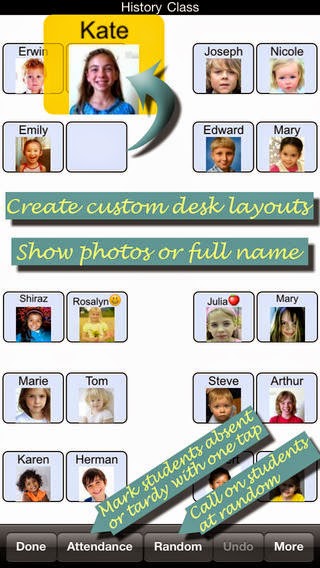
Smart Seat (available on iTunes for $4.99) allows a teacher to create seating charts, divide students into groups, and monitor daily attendance conveniently using their iPad, iPhone, or iPod Touch.  The charts, groups, student information, and attendance summary can then be viewed in PDF format or emailed.  This app is simple, efficient, reduces waste from multiple paper seating charts, and is convenient.  If it's on your phone or tablet, you have it with you wherever you go.


Here are some simple tips for using this handy app:

Add a Roster 
Create a new class, tap "More" and then "Type or Paste Names."  Type or paste your student names (one per line) in either the "First Last" format or "Last, First."  You can also copy them from an online roster and paste them into the text box in the same format.  Select "Done" when finished. 
*If you need to delete a student, select "More" in the bottom right corner, then "Roster," swipe left across their name, and select "Delete."  To add new students select the plus (+) sign.


Add Photos to Students
From the seating chart or from the roster, select a student, and choose "Album" to find a picture saved in your camera roll or "Camera" to take a photo of your student right then.  You can also reposition or enlarge the photo if needed.  If you would like the photos to show on your seating chart, select "More," "Chart Options," and turn on "Include Photos."

Make Notes about Students
From the seating chart or from the roster, select a student, select "Notes," and type any important notes about your students.  You might want to add notes about student behavior, performance, participation, accommodations, modifications, allergies, and any other important information.  From the Student Info page, you can also add a nickname and view attendance. This information can also be emailed to parents, colleagues, the counselor, diagnostician, principal, or even yourself by selecting "Export" and entering an email address.

Customize Desk Layout
Select "More" in the bottom right corner, then "Change Layout," and pan left, right, down or up to change the number of desks.  Then, touch the the desks to remove them.  To add a desk back, tap the empty space again.  Select "Done" when finished.  To move a student's desk, select and hold down on their name/image and drag them to another desk.  You can also move all students to new desks by selecting "More" and "Scramble Students."

View or Email PDF Chart
To print or email your seating chart to substitutes or administrators, select "More" in the bottom right corner, then "Chart Options, and select to email or view the chart under the "Export" heading.  If you would like to include photos of your students in the printed chart, select "Include Photos" under the "Export Settings" heading.  Here you can also select to reverse the perspective, include the student's last name, change the page orientation, or show student groups. To print the seating chart, after you select "View PDF Chart," select the "share" arrow in the top right corner, then choose "Print," select a wifi-printer, and tap "Print."

Take Attendance
To take attendance, select "Attendance" at the bottom of the seating chart screen.  You can select "All Pres" if all students are present, or select students individually and mark them Absent, Tardy, or Excused.  Select "Done" when finished.  

View Attendance Summary
Select "More" in the bottom right corner, then "Attendance Summary," select a start and end date, then view or email the report. This will make it easy to transcribe your class' attendance in your school's attendance system later.

Create Groups
Select "More" in the bottom right corner, then "Create Groups."  Choose the number of groups by selecting the plus (+) or minus (-) sign in the top left corner, tap "Create," then "Done."  Students will be randomly assigned to groups, which are designated by different colors.  

Randomly Select Students
To randomly call on students during a lesson or class discussion, select "Random" at the bottom of the seating chart, then the "Next" button to select a student.  Once a student's name appears, it won't reappear until all students have been called on. 

If you have any questions on how to use the app, please feel free to comment below or email us at watsonworks1@outlook.com.

~Heather & Ashley
Watson Works

http://www.teacherspayteachers.com/Store/Watson-Works


Sunday, October 26, 2014

How to Make QR Code Activities for your Classroom


http://www.teacherspayteachers.com/Product/How-to-Create-a-QR-Code-Activity-for-the-Classroom-User-Guide-1519602


What are QR Codes?
QR stands for quick response, and they do exactly what their name says.  They quickly get students to answers, videos, audio files, and various other educational content available online, thus minimizing the time it takes for students to check their work or find a location online where you want them to go.  No more typing in long or strange website URLs!  And, you instantly have more time available for learning!

How Can I Use QR Codes in my Classroom?
QR code activities are one of the EASIEST ways teachers can implement mobile devices in their classrooms AND they bring learning and student engagement to a whole new level!  Plus, they are so versatile!  You are only limited by your imagination! 

By far, the easiest way teachers can use QR codes in their classrooms is by simply taking worksheets they're already doing, inputting the problems/questions into task cards, and creating QR codes for the students to self-check their answers. Then, the task cards can be used in cooperative groups, scavenger hunts, posted around the room to get students out of their seats, or to play review games like SCOOT or Be the Teacher.

Some of my favorite ways to use QR codes include:

http://www.teacherspayteachers.com/Store/Watson-Works

Need Help Getting Started?
For detailed instructions (with pictures) on how to create your own QR code activities for your classroom, check out our FREE user guide available in our TpT store.  

http://www.teacherspayteachers.com/Product/How-to-Create-a-QR-Code-Activity-for-the-Classroom-User-Guide-1519602


No Time to Create your Own, but You Still Want to Try Them?
Check out some of the QR code activities we've created, as well as the numerous others created by other creative sellers on TpT.  Simply go to TpT, type in QR codes in the search box, and prepare to be amazed by the wealth of QR code activities that have already been created for you to use!

Here are a few of ours:

http://www.teacherspayteachers.com/Product/Zombie-Math-Task-CardsQR-Code-Version-2-Digit-Addition-Subtraction-1519511

http://www.teacherspayteachers.com/Product/Halloween-Listening-Centers-w-QR-Codes-Hyperlinks-12-Stories-Included-1479338

http://www.teacherspayteachers.com/Product/Creepy-Commas-Task-Cards-QR-Code-Version-1502715

http://www.teacherspayteachers.com/Product/Spooky-Sentences-Types-of-Sentences-Task-Cards-QR-Code-Version-1485557

http://www.teacherspayteachers.com/Product/Lets-Tour-the-School-Scavenger-Hunt-A-Back-to-School-Activity-w-QR-Codes-1326930

http://www.teacherspayteachers.com/Product/Lets-Tour-the-Classroom-Scavenger-Hunt-A-Back-to-School-Activity-w-QR-Codes-1352848

http://www.teacherspayteachers.com/Product/Ready-for-School-Back-to-School-3rd-Grade-Math-Review-Task-Cards-with-QR-Codes-1356293

If you have any questions, please feel free to email us at watsonworks1@outlook.com or comment below.

We look forward to hearing from you!


~Heather & Ashley
Watson Works

http://www.teacherspayteachers.com/Store/Watson-Works

Saturday, October 18, 2014

Drawing Conclusions: CSI Style!

http://www.teacherspayteachers.com/Product/CSI-Drawing-Conclusions-Activity-with-QR-Codes-1505739

This week, we did one of my favorite activities of all time with the 2nd graders on my campus.  The skill for this week in reading was drawing conclusions, so a few of the 2nd grade teachers asked me to help them come up with a CSI style mystery for students to solve by drawing conclusions.  So, we teamed up with our wonderful, go-with-the-flow, music teacher, Mrs. Brassard, and created a fun mystery for our students to solve.  

Making our Case
First, we had to come up with a case.  Since Mrs. Brassard is currently busy getting ready for the 2nd grade choir concert next week, we decided to make our case revolve around that.  Here was our case:
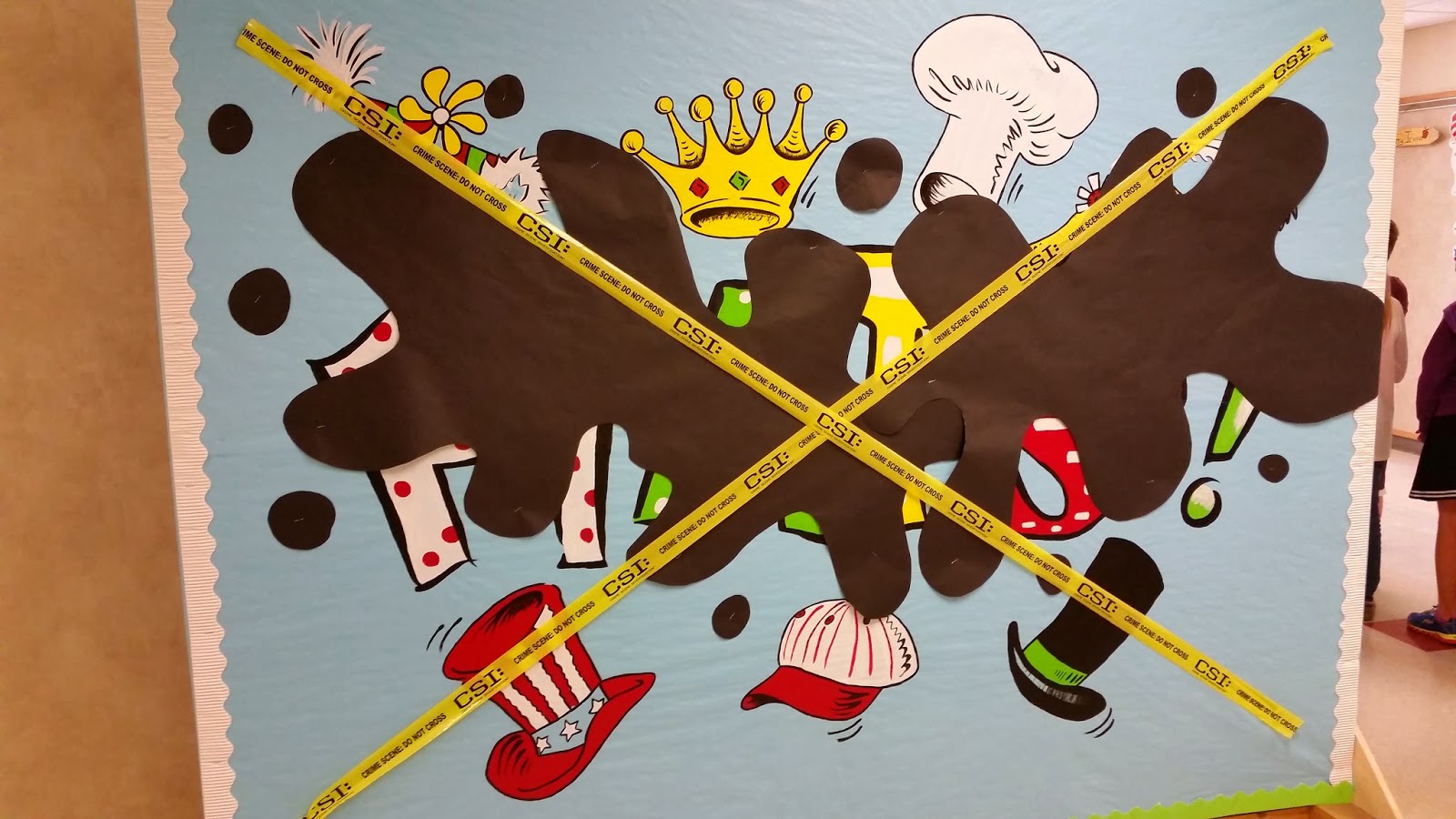
"Mrs. Brassard was getting ready for her upcoming concert, "Hats the Musical."  All of the kids were singing their songs all the time, and all they could talk about was, "Mrs. Brassard, Mrs. Brassard, Mrs. Brassard!"  Someone on campus (me - the librarian) didn't like that Mrs. Brassard was getting all of the attention.  In an act of jealousy, they poured black paint all over her sign!  Help Mrs. Brassard find out who ruined her sign.  Follow the clues that lead back to the jealous vandal, and solve The Case of the Black Paint Mystery!"

Creating the Crime Scene
Next, we had to make the crime scene.  We spilled black "paint" (really just black paper) on her beautiful sign and marked it off with very authentic looking CSI crime scene tape (although regular caution tape would work just fine).  

Mrs. Brassard is such a good sport that she also agreed to film a short video of herself discovering the sign and pleading with the students to use the clues and help her solve the case (in true "Blues Clues" fashion, I might add...haha). Click the image below to view the video.
https://www.flickr.com/photos/126108335@N03/15365959689/in/photostream/lightbox/

Creating Clues/Evidence
Next, we had to come up with evidence/clues to give our students to help them solve the mystery.  Because these are 2nd graders, we couldn't make them too easy or too difficult.  Here's what we came up with:
Black footsteps that led down the hall in the direction of the library (I wore high heels on this day to hopefully help students eliminate the male suspects on campus).

Black paint and a "Read" apron stashed on a shelf in the hallway leading to the library.

An earring (that I wear all the time) and a strand of long brown hair found on the floor in the hallway leading to the library.

Black paint found in the girls' bathroom in the hallway leading to the library (thus eliminating all male suspects - hopefully).


Our final piece of evidence was a black thumbprint found on a library book on a shelf right outside the library.
Once we took photos of all of the evidence, I uploaded the photos to Flickr and created a QR code for each photo.  Then, we inserted the QR codes into a cool, CSI-style, caution tape task card, along with a written clue.  Here's an example:
http://www.teacherspayteachers.com/Product/CSI-Drawing-Conclusions-Activity-with-QR-Codes-1505739
Making Evidence Files
After making all of the clue cards, we placed them into CSI-style evidence files to distribute to student groups.
http://www.teacherspayteachers.com/Product/CSI-Drawing-Conclusions-Activity-with-QR-Codes-1505739

Solving the Crime
Then, we passed out an iPad to each group, reviewed how to use QR codes, and discussed the case with students.  And boy, oh boy, is Mrs. Brassard a good actress because the kids believed this case was very real (corny as it was)!!  

First, they scanned a QR code to watch her video, and afterward, they read the case description on the back of the card.  Next, students read each clue card and scanned the QR code to view the photos of the evidence.  The groups had to work together to draw conclusions and solve the crime.  They recorded their evidence, possible suspects, and final verdict on their Evidence Recording Sheet, and then reported it to the class at the end of the lesson.
http://www.teacherspayteachers.com/Product/CSI-Drawing-Conclusions-Activity-with-QR-Codes-1505739
I wish we could show you the video of the students at the end solving the mystery because it truly is priceless.  One little girl wanted to go tell Mrs. Brassard right that minute!  But, since we can't share it, here are a few photos of the kids enjoying the activity.


The girl in the green at the front of the class was literally jumping up and down, flailing her arms about, begging to go tell Mrs. Brassard.  SO FUNNY!!

If you're interested in doing a CSI style activity in your class, we did upload the products we used to complete this activity to our TpT store.  It truly was so much fun that we're planning to solve another mystery every time our skill in reading for the week is drawing conclusions.  The kids loved it so much that our math teachers are even brainstorming creative ways to use the activity in their math classes, too.  The sky's really the limit with this one.  Yes, it does practice drawing conclusions, but it uses higher order thinking skills and is so versatile!  It can be used in numerous grade levels and in any subject area.  Determining the difficulty level and subject area are up to you.  

Your crime could be a mystery involving someone on your campus like ours or even a celebrity students easily recognize so that they're instantly engaged in the activity; it could also involve a case where students are given clues to discover a certain number, letter, vocabulary word, mathematical concept, historical figure/event, scientific term, etc.  Be as creative as you want to be! 

If you do a CSI style activity in your class, we'd love to hear your ideas, and we hope your students enjoy it as much as ours did! :)

~Heather
Watson Works

http://www.teacherspayteachers.com/Store/Watson-Works

Sunday, October 5, 2014

12 Most Checked Out Halloween Books in my Elementary Library

http://www.teacherspayteachers.com/Product/Halloween-Listening-Centers-w-QR-Codes-Hyperlinks-12-Stories-Included-1479338

For curiosity's sake, I recently ran a report to see which Halloween books were most frequently checked out in my elementary library in 2013, and these 12 won by a landslide:

1) Arthur’s Halloween by Marc Brown
2) Click, Clack, Boo! by Doreen Cronin & Betsy Lewin
3) Creepy Carrots by Aaron Reynolds
4) Druscilla’s Halloween by Sally M. Walker
5) Fancy Nancy: Halloween…or Bust! by Jane O’Connor
6) Froggy’s Halloween by Jonathan London
7) Halloween by Jerry Seinfeld
8) The Hallo-weiner by Dav Pilkey
9) Haunted House, Haunted Mouse by Judy Cox
10) I’m not Afraid of this Haunted House by Laurie Friedman
11) Scaredy-Cat, Splat! by Rob Scotton
12) There Was an Old Lady Who Swallowed a Bat! by Lucille Colandro
Because of these results, we were inspired to create our very first QR code listening centers.  We included each of these Halloween titles, and we're super excited about them!!

http://www.teacherspayteachers.com/Product/Halloween-Listening-Centers-w-QR-Codes-Hyperlinks-12-Stories-Included-1479338

Using QR code listening centers like these can drastically modernize and improve your listening centers.  Students will scan the QR Codes using a QR reader on their smart device (iPad, iPod, iPhone, tablets, etc.), then simply press play and listen to the stories being read by ME while they follow along in the book. A train “choo choo” will sound to alert students to turn the page. All of the narrations were made using AudioBoom.com, so this should help with districts who filter/block YouTube.

You can also use these listening centers on desktop/laptop computers by having the document open on the screen and allowing students to click the QR codes which are hyperlinked to the narrations of the stories on AudioBoom.com.

I can't wait to use these in my library this year!  We hope you like them, as well! :)

~Heather
Watson Works

http://www.teacherspayteachers.com/Store/Watson-Works

"Education is the most powerful weapon which you can use to change the world."
-Nelson Mandela